


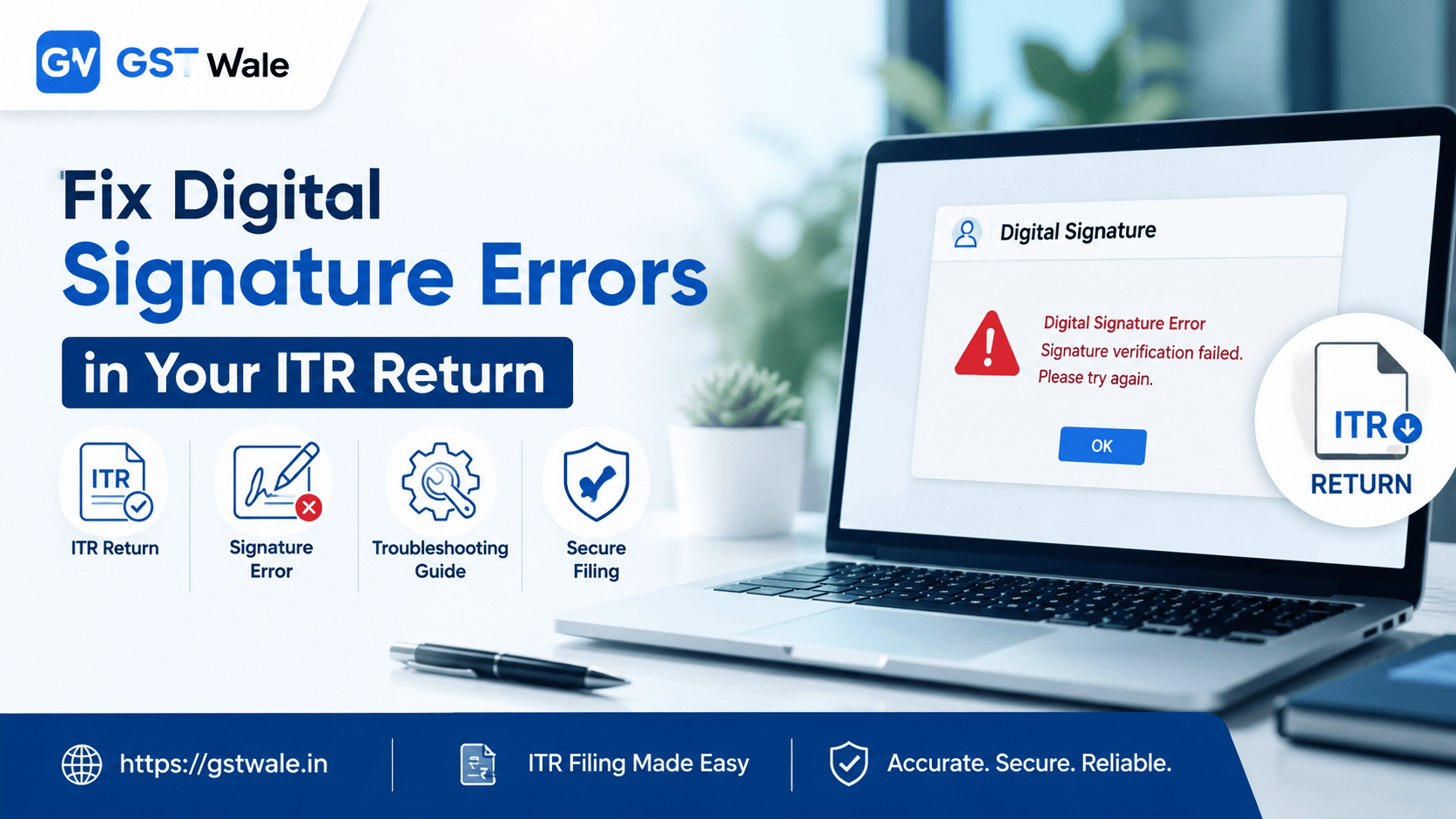
Comprehensive Troubleshooting Guide for Digital Signature Errors in Your ITR Return
Comprehensive Troubleshooting Guide for Digital Signature Errors in Your ITR Return
It is that time of the year again when the stress of tax compliance hits every business owner and professional. We see so many of you working hard to get your financial records in order, only to hit a wall when it is time to submit your ITR return. At GST Wale, we know how frustrating it is to have everything ready, only to be stopped by a technical glitch. To make things smoother, you can always explore our professional ITR Filing services to handle the complexities for you. However, if you are attempting to sign your own ITR return, you are likely here because of a pesky error message. Let’s break down how to get you back on track.
Why Do Digital Signature Errors Occur?
Most taxpayers assume their digital signature certificate (DSC) is broken when an error pops up. In reality, it is usually a simple communication breakdown between the Income Tax portal, the emBridge utility, and your web browser.
The most common culprit is often an outdated version of the emBridge software. Think of emBridge as the bridge between your physical USB token and the online portal. If the bridge is old or disconnected, the car—your ITR return—cannot cross.
Step-by-Step emBridge Troubleshooting
Before you panic, try these systematic steps to resolve emBridge troubleshooting issues.
Stop and Restart the Service: Often, the service just gets "stuck." Go to your Windows Task Manager, look for the emBridge service, end the task, and restart it from your desktop icon.
Run as Administrator: Right-click the emBridge application and select "Run as administrator." This gives the utility the necessary permissions to access your USB token drivers.
Check Your Token Drivers: Ensure your DSC token drivers (the software that came with your USB key) are updated. If you recently updated your Windows OS, your drivers might be incompatible.
Reinstall emBridge: If nothing else works, uninstall the utility, restart your computer, and download the latest version directly from the Income Tax portal.
Fixing Browser Settings Tax Portal Conflicts
Your browser is the gateway to the tax portal, but it can also be the biggest obstacle if the browser settings tax portal requirements are not met. We frequently see users trying to sign their ITR return using browsers that are not fully supported.
Clear Cache and Cookies: This is the "restart" of the internet world. A cluttered cache can hold onto old, broken scripts that cause a DSC utility error. Clear your browser history, cache, and cookies, then try again.
Use Supported Browsers: While the portal works on many browsers, Google Chrome and Microsoft Edge (in Chromium mode) are generally the most stable. Avoid using outdated versions of Internet Explorer.
Enable Pop-ups: Sometimes the "sign" window is blocked by your browser's pop-up blocker. Ensure you have "Allowed" pop-ups specifically for the Income Tax India website.
Common Digital Signature Registration Issues
Before you can sign, your certificate must be registered. If you are getting an error during this phase, consider these points:
Valid Certificate: Check the expiry date of your DSC. An expired token will always trigger a digital signature registration failure.
System Date/Time: It sounds trivial, but if your computer’s system clock is off by even a few minutes, the secure connection between the portal and your token will be rejected.
USB Port Issues: Try plugging your DSC token into a different USB port, preferably one directly on the motherboard (at the back of your PC for desktop users), rather than a front-panel hub.
Best Practices to Sign ITR Online
When you are finally ready to sign ITR online, keep these expert tips in mind:
Avoid Peak Hours: During the final days of the filing deadline, the server traffic is immense. This can lead to slow response times which the browser might misinterpret as a DSC utility error.
Keep Your Token Inserted: Do not remove the USB token until the signing process is 100% complete and you see the success message.
Check for Conflicts: Ensure no other signing software (like those used for GST filings or banking) is interfering with the emBridge utility.
Frequently Asked Questions
Why does my browser say "Bridge not found" even when emBridge is running?
This usually happens because the port used by emBridge is being blocked by your firewall. Try disabling your antivirus or firewall temporarily to see if that solves the issue.
Can I use a digital signature of another person for my ITR return?
No. The DSC must belong to the authorized signatory or the individual taxpayer. Using someone else’s DSC is a violation of security protocols.
What should I do if the "Sign" button remains greyed out?
This typically indicates a Java-related issue or a failed connection with the emBridge utility. Refresh the page and ensure the emBridge icon in your system tray is green (indicating it is active).
How do I know if my DSC is corrupted?
Try using the same DSC to sign a PDF or log into another government portal. If it fails there as well, the hardware token itself might be corrupted or damaged.
Technical glitches are a part of life, but they shouldn't stop you from fulfilling your tax obligations. Whether it is a simple DSC utility error or a deeper technical conflict, stay patient and follow these troubleshooting steps. If you still find yourself stuck while trying to submit your ITR return, remember that you don’t have to do it alone.
At GST Wale, we specialize in simplifying taxes for taxpayers across India. We handle the technical heavy lifting so you can focus on growing your business. Reach out to us today, and let’s ensure your ITR return is filed accurately, on time, and without the digital headache. Your peace of mind is our priority!
 Previous